Thankfully, Zoom is an intuitive program for most people, at least if you’ve had your morning coffee. These tips will cover more advice for people who are ready to take their Zoom meetings to the next level and even start hosting meetings!
Author Events, Book Club Meetings, Book Launches, Socials – Just to Stay in Touch, Presentations, and More are just a few of the Interactive Activities that Authors and Publishers can facilitate using ZOOM!
1. Framing
Some people have discussed a rather strange problem with all these virtual conversations we have now. When talking put their face right next to the camera, filling up the entire camera and giving them an impressive head size. Then, when they see each other in person for some safe social distancing, their heads look extraordinarily tiny.
Do you remember Big Head Todd and the Monsters?
Big Head Todd and the Monsters – I’ve met him in person. He does have a big head. Nice guy! – Kiffer
To fight big-head-syndrome you can work on framing yourself. With friends, there’s of course plenty of wiggle room here, but in more professional settings, it seems that from the shoulders up is the recommendation.
A proper ratio and perspective of David!
Even better is if you move your hands up into the frame when you talk. This provides a helpful hint to watchers of who is currently talking, and it helps give us a better understanding of the body language you’re trying to convey than if your hands are hidden somewhere beneath the frame.
2. Manage Your View
If there are fewer than 10 people in your meeting, you can probably stay in “Gallery View.” However, if you often find your mind wandering during the meeting, try to set up “Speaker View,” which will have the screen focus on whoever is the last person to have spoken (though it well never focus on you). The options for these can often be found on the top right of your screen on desktop.
The Brady Bunch
Or sometimes you can have more people on the Gallery View—also know as the “Brady Bunch” view like we do when we have Happy Hours at the Roost! We try to make room for everyone.
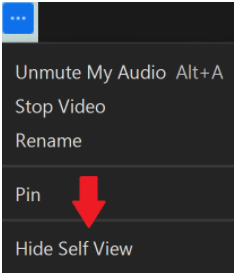
The next thing that will help anyone who has trouble looking away from her or his reflection is to “Hide My Self View.” Make sure to do this after you set up your framing, and remember that others can still see you! You can usually hide your self view by clicking on the three little dots in the top right of your image box, and then to show it a new button will appear in the top right of your screen to start showing your self view again. See the three little dots in the blue box below. Yeah, it is sort of like a secret code…
Remember, you never need to appear in a Zoom meeting if you don’t want to, but with these tips and tricks, you’ll be able to look professional while still staying comfortable.
The Following Tips Will Help You HOST your OWN ZOOM MEETINGS for Book Launches, Book Clubs, Author Events, and Outreach to Your Readers and Potential Readers
3. Set up a Meeting (for PC)
While these are fairly similar processes, if the instructions for a PC doesn’t work for your Mac, read the instructions here about hosting from an Apple or Mac computer (from the Zoom website).
For PCs, you’ll want to look in the top right of your screen once you log into your Zoom.us account. In the top right corner you’ll see the following three options:
The option for “Join a Meeting” of course allows you to join a meeting. You might think that “Host a Meeting” is the next natural option, but really that only allows you to host a meeting immediately instead of later. What will allow you to plan and schedule a meeting for your book release or the next meeting with your publisher is when you click on the “My Account” link.
Remember, Zoom only offers unlimited meeting times to people who pay for an official account, but anyone can have a meeting with a free account. If your 40 minute free meeting runs out of time, people can rejoin the meeting using the same link that they used to get into the meeting in the first place.
Once you click on “My Account” you will see a list of options on the left side of the screen.
As highlighted in the image above, you’ll want to click on “Meetings”
Once “Meetings” are selected, you’ll see all the meetings that you’ve set up in the past, and there will be a button on the far right that says “Schedule a Meeting”
From this screen there are a few sections to focus on.
Topic — This is the title of your meeting. It’s more important to have this labeled if you are using it for a big marketing event like a book release event. Less important for an individual meeting with somebody.
When — While technically you can join a Zoom meeting at anytime provided the host hasn’t closed the meeting, setting the time is a great way for people who try to join at the wrong time to double check when you’re actually supposed to be there.
Registration — This can be a handy way to ensure people sign up with their email and makes it so they’ll receive a reminder email for your event. This works better for more formal meetings.
Security
Passcode: We always recommend using a password. You can set your own or use the one randomly generated by Zoom.
Waiting Room: Waiting Rooms are great if you want to screen who comes into your meeting, but make sure you keep an eye on your participant’s tab. Keep reading to learn more about the participant’s tab.
Meeting Options
Allow participants to join anytime: Yes, check this box.
Mute participants upon entry: Yes, check this box.
Save! At the very bottom is the “Save” button. Always click Save once you’ve finished making a meeting so as to not lose it!
4. Always include a link to the meeting with the date and time.
Something about digital information lets information slip out of everyone’s head. Instead of sending out an email that says “See you at the next meeting, here’s the link!” If you include the date and time of each meeting you have, that will save you several replies (maybe even a feared “Reply All”) that will make your meeting run a little smoother.
5. Always include the password if there is one.
This one is simple. Like the date and time, always including this will help streamline people’s ability to join your meeting.
If you’re the host, you can find information about the Meeting ID and password by clicking on the ⓘ symbol on the top left of your screen to see this information.
6.The Waiting Room
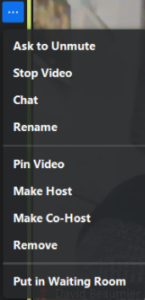
If you decide to use a “Waiting Room” make sure you have the “Participants” tab open at all times to let people in. If you need help managing the “Participants” tab, feel free to assign a responsible party in your meeting the “Co-Host,” and they will have the power to admit people, too.
7. Post the instructions on how to join the meeting by phone.
Audio conferencing participant will need to call: (415) 762-9988 or (646) 568-7788. AND follow the verbal instructions.
Enter the meeting ID, 11 digits long followed by the # key.
You will be asked to enter your participant ID. If you do not know your participant ID, simply press the # key.
As the person logs in to the Zoom call using their phone, they will be given instructions on how to mute and unmute themselves.
8. Manage the Mute
If someone wants to make a comment every now and then, that’s fine, but if their spouse is watching the big game and yelling behind them, it may be worth it to just click that “Mute” button. No need to call attention to it, most people will think the person realized that their sound was a distraction and muted themselves. There’s no shame in being muted.
As a related note, occasionally it might be good to turn off someone’s video, but this is usually not necessary. I did attend one writer social where an author who worked an early morning shift fell asleep partway through. Not a huge issue, but probably something the host could have hidden to keep the energy level up instead of letting everyone really consider whether they, too, wanted a nap.
SOMETHING FUN for YOU to WATCH! The Official ZOOM Song (an anthem for quarantine ZOOM meetings) song to the theme of The Brady Bunch
ENJOY! And please leave your comments below (or your fav YouTube videos).
You can bet that whether you return to the office next fall, or stay as work from home (WFH), or do a mixture of both as we do here at Chanticleer, Zoom meetings will continue to be a part of normal life.
Authors and publishers will particularly need to Zoom or video conference to stay in contact with their readers and as a major component of their book promotion strategy and author branding.
Zooming and video conferencing is a terrific way of reaching out to book clubs, reader fans, book launches, and author events.
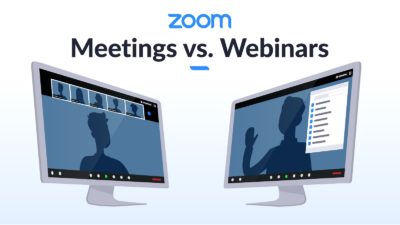
Are You Trying to Access a Zoom Webinar or Zoom Meeting and What Are the Differences?
First, determine if you what you are trying to access is a Zoom Webinar or a Zoom Meeting as they are different in how to access them. Webinars tend to be more secure and are also used for Zoom events that are expecting more than 50 attendees.
Zoom Meetings
If it is a Zoom Meeting, all you will need to is the link from the host of the meeting and, and in some cases, perhaps a password that the host will also share with you via an emailed invitation to the specific meeting.
Zoom meetings are perfect for hosting more interactive sessions or if the audience needs to be in broken out into smaller groups. All attendees can see who the other attendees are along with the host and are able to interact with them via the CHAT feature on Zoom.
All attendees can mute and unmute their audio at will.
All attendees can share screens with other attendees.
You do not have to have a Zoom account to attend at Zoom meeting.
Meetings are for collaboration and discussion along with visiting others. We use Zoom meetings for our Roost Happy Hours.
Zoom Webinars
You do have to have an account to attend and accept a ZOOM webinar invitation.
Zoom webinars require users to have an account with an email address and password with ZOOM.us
Use this address when registering for Zoom webinars.
Why use Zoom webinars instead of Zoom Meetings?
Webinars can allow for panelists – not just host and co-host.
Webinars can be accessed by 100 to 10,000 attendees depending on the host’s Zoom license.
Only the Host and Panelist can see who is attending.
Webinars are more secure than meetings.
Only the Host can unmute or mute attendees and appoint panelists.
Only the Host or Panelists may share screens.
Webinars may allow attendees to interact via Chat, Q & A, and answering polling questions.
Zoom webinars tend to be used for lectures, conferences, and larger audiences. Think of the zoom webinar more or less like an auditorium. Meetings are more like sitting around a conference table or participating in a classroom.
Zoom webinars are available through Zoom as a paid add-on by the host.
How can I tell if I have registered with ZOOM.us? — VISIT www.ZOOM.usand try to login. If you cannot, you need to set up a ZOOM account.
It bears repeating…
Why is this important: You will need to have an email address that you use to login to ZOOM.us for webinars. You do not need a Zoom account for meetings.
Frequently Asked Questions:
Do I have to pay to use ZOOM? No. Only hosts have to pay for webinars applications. Zoom is free to users—meetings or webinars. Although, you may have to pay to register for the event that is being Zoomed to receive the password, login, and invitation.
Can I stop and take a break once I log-in?Yes, all you have to do is click the login in again to the daily email invite from ZOOM to access the particularwebinar again.
Do I have to register for individual sessions or just show up? No, like attending a real conference, you may pop in and out at your convenience.
How do I log back in? It is easy. All you have to do is click on that day’s link that you will receive in your event’s email invitation.
Will I be able to ask questions of the presenters? Yes, there is a way to ask questions and to chat with other attendees during the sessions.
How do I ask a Question? Hover your pointer (aka mouse pointer) over the bottom of the ZOOM screen, you will see a menu popup that has Q & A, CHAT, Video, Polls, Video, Mic, etc. Click on Q & A. You will see the Q & A form pop-up. Type your question here.
What is the difference between CHAT and Q & A? The Q & A will be monitored by the session moderator. The CHAT feature is not monitored by the monitor or presenter. This is akin to passing notes in class or texting with your fellow attendees. GO ahead and chat! It is fun to do! And this time you won’t get in trouble. Chatting is like passing notes in class with no worry of getting caught.
And, we know you all will want to attend the2021 Chanticleer Authors Conference #CAC21 virtually on Zoom. VCAC 21 will be held as a Zoom webinar and not a Zoom meeting.
You also might be interested in joining Chanticleer’s exclusive Roost club where authors mingle, mix, and share their expertise and knowledge. It is comfortable and convenient place to take a dip into the Zoom pool.
Leading me to the next item: Zoom etiquette and handy tips.
The Roost at Chanticleer Happy Hour Spring 2020
1. Set up Your Space
If your computer can manage it, virtual backgrounds are always acceptable. You can figure out how to set those up here. See a favorite background of David’s below. There are thousands to choose from. It is up to you select or create the background for your particular purpose. It will be a different one for “visiting with friends and family” than for work or presenting to a book club group or for taking a virtual Zumba or Yoga class. Varying your backgrounds (even using real places) for Zoom meetings will help set the stage for the purpose of the Zoom meeting.
David B.’s fav screen background for Zoom. It is out of this world!
However, some people, like myself, don’t have a computer that lends itself well to virtual backgrounds. I have good news! Most people don’t have professional in home offices, and that’s understandable, so no one will be upset if your bed is floating somewhere behind you. Generally, keeping the space behind you neat and, if you can, free of doors where people who you live with might make a guest appearance. If you have objects that relate directly to your work—books, advertising swag (Chanticleer Blue Ribbons perhaps), etcetera—you can always have that displayed prominently (nothing wrong with a little subliminal advertising). Kiffer advises dressing to promote your brand when promoting your work or participating in publishing/writer events.
Lighting
For lighting, it helps to have one overhead source of light, and then another, brighter light source, set at a forty-five-degree angle to where you’ll be sitting. This helps light you in a way that prevents you from being washed out since you’re lit from multiple angles, and while one side is a little more shadowy, you’re clearly not disappearing into the dark.
And try to keep all of your lighting the same. Most light bulbs come in a blue tint, white tint, or soft white (tungsten, which has an orange tint). Pure white light is the best.
Make sure that you are not backlit (sitting in front of window on a sunny day) or with a lot of lighting behind you. If you are backlit, your video image will disappear. You will appear as a silhouette or a shape.
And some people use professional lighting just for videoing to make themselves look their best. A popular device is a “light ring” that is setup behind the video camera that you are using (whether it is like mine and is situated in my laptop or a separate camera that is connected to your computer.
The main thing is to reduce the amount of light behind you and increase the light shining on you. Just think about how talk shows are always brightly lit even if the air in the evening. Light on you makes wrinkles and aging shadows disappear and generally is more flattering to almost everyone.
State of the Art Brownie Camera!
Lighting should be in front of you and behind the camera. Just like using an old Brownie camera.
2. What to Wear
There’s a certain casual ease to working from home, which is wonderful, but it’s worth keeping a couple of things in mind. For example, when we stand up, we tend to naturally bend over a little bit first. Normally this isn’t a huge problem, but when I’m wearing my billowy pirate shirts for “Talk Like a Pirate Day” everyone’s treated to a look at my navel, which isn’t quite the nautical theme I’m going for. [David B]
You may want to consider to wear solid colors or lightly patterned tops. Take your cue from news announcers and talk show hosts to look your professional best.
For authors, if you are Zooming with a book club or an author event, be sure to promote your author brand with what you are wearing. Treat the video call just like if you were having the event in person.
Also when standing up, whatever you’re wearingon your legs might be visible. Dark sweat pants tend to look more or less like slacks, so there’s still no huge pressure to be wearing jeans.
While it’s great to know how to set up the background and how to possibly dress, one thing that I cannot overemphasize is that you never owe someone a visual look into your home. Zoom fatigue is real, and sometimes we just need to know we aren’t presenting to be on camera twenty minutes after rolling out of bed. If you can manage it, people do like to be able to see who they are speaking to, but if you can’t I truly believe Miss Manners would suggest a simple “I’m sorry, but I’m just not presentable now” should sate any questions about last minute Zoom meetings.
How to Appear at Your Best
Easy photogenic things to do to help you look your best while Zooming
If you are using a laptop with the camera centered at the top of the monitor screen, Kiffer suggests setting it on a stack of books to that the camera is more level with your eyes or perhaps slightly higher so you tilt your head back a bit instead of down. Doing this will help in reducing the look of double chins and undereye shadowing. Plus, it will help you hold your head high! If you need to reach the keyboard, just use an independent keyboard that is within reach along with a mouse.
JellyComb make wireless, foldable, lightweight keyboards starting at $29 topping out at $59. They even have one that you can use with your smart phone! ($49). And while you are checking them out, look at their mice products. Kiffer found out about this company when she trashed her laptop’s keyboard with one too many coffee splashes and cookie crumbs. Her computer was working just fine and so was the monitor. JellyComb’s combo package of mouse and keyboard for $29 had her laptop back up and working pronto! Now she uses the equipment with her new laptop for video calls.
2. Be careful about “Talking Head Syndrome” — Position your camera and/or laptop far enough away from you so that at least your head AND shoulders appear in the video. If the camera is too close you will look like a huge floating head bobbing around to the persons on the receiving side of the videocall.
3. Zoom has a feature called “Touch Up My Appearance” —it really does! It smooths out the complexion. You can find this feature in Settings. Toggle this option back and forth to see the difference.
Your life will become a lot easier if you master a few Zoom hotkeys. You can read directly about all of them here, but I’m going to cover my favorites in this section. Now, these can feel a little frustrating, because you will need to make sure your Zoom window is selected before using any of them. This means you’ve clicked somewhere on the Zoom window before using the hotkey.
The first one worth noting is just Alt, which shows you the possible buttons you can click without needing to mouse over your screen. This means that as you try to use the other hotkeys you’ll be able to visually confirm they’re working by whether or not a red slash has appeared across the associated icon.
Alt+Alets you mute immediately. What Alt+Ameans is that you hit the Alt and A keys simultaneously. The next numbered section will talk about muting and unmuting, butusing Alt+Ais a great way to quickly turn of your sound when you see the dog running to the front door ready to bark and deafen everyone in the meeting.
Fido serenading the other Zoom attendees
Is your roommate just heading out of the shower walking absentmindedly into your video screen? Alt+Vwill quickly shut off your video. It’s also handy if you want to eat while the meeting is happening and don’t want people treated to a show of watching you chew.
Poky Internet? Turning your video off can also be a great way to help improve the quality of your internet.
What will the other attendees see if I turn off my video camera?
Your name that you used to register with ZOOM. That is it.
You without your video camera on during a Zoom meeting. Replace Author with your registered Zoom user name.
I don’t use any of the other hotkeys in meetings except for these three. Alt, Alt+A, and Alt + V. There are several others that you can learn more about on the ZOOM.us website if you are interested.
4. Mute Yourself
You can always start off by saying hi, but for the most part get comfortable muting and unmuting yourself. If you’re not talking, the best course of action is to stay muted. I have a habit of talking to myself a little or humming to myself when in Zoom meetings, maybe occasionally needing to burp a little bit. Having myself muted allows me to keep most of these things hidden rather than embarrassing myself by any unknown sounds.
I also find that leaving myself on mute helps me be more thoughtful when I choose to unmute myself rather than when I can speak at anytime. It is considered to be excellent Zoom etiquette to mute yourself except when you are addressing the rest of the group.
The reason for mute and unmute on Zoom is that only one user at a time will be broadcasted over the audio. For example, if you do not mute and you leave to refill your coffee cup and your cat or dog begins talking (meowing or barking) they will have “the floor” of the Zoom meeting. If a phone rings during a pause it will be picked up.
And David and I can’t begin to tell you how many times that we have inadvertently heard private conversations during breaks when people place calls or chat with roommates and had no idea that everyone on the ZOOM meeting could hear the conversation—whether we wanted to or not.
Mute and Unmute is your Zoom friend!
5. Use the Chat
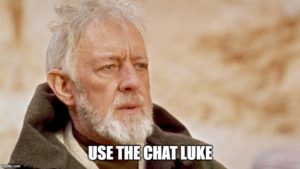
Now you’re muted, and someone is making a excellent point that you can absolutely relate and add to! Interrupting in Zoom can be tricky, which is where the chat option comes into play. Now, it’s good to know that the host can often save the chat and even see private messages, so make sure that no matter who you type it’s something that won’t embarrass you or hurt anyone’s feelings if the whole group sees it.
Chat can be a great way to show you agree with someone “+1 to Kiffer’s comment!” or to share a resource that you think might help with part of someone’s question.
If you do want to add to the discussion, raise your hand or if it is a happy hour or casual situation, wait your turn and then unmute. Just like you would do in an in person meeting. Don’t interrupt, but do add to the conversation. And just like at cocktail party, or luncheon, don’t be the one who dominates the conversation.
6. Consider the Ethernet
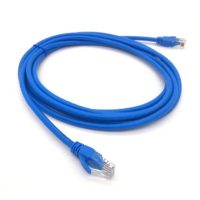
To improve your internet connection consider using an ethernet cable for a direct connection to the internet, and you can try turning off your video if you still have connectivity issues. Remember that Ethernet cable—the blue one?
The cable that was used before wifi internet…long ago and far away…
As said before, you can also always turn off your video if you’re having connection issues.
7. Look into the CAMERA
Looking into the camera will give your viewers the appearance that you are making eye contact with them. It is hard to do at first and will take a conscience effort, but it will make a big difference in how you are perceived in Zoom meetings by appearing attentive and interactive especially if it is a small Zoom meeting.
8. Sipping is okay. Generally speaking, eating is not.
For most Zoom meetings, unless it is an actual virtual dinner going on or a virtual party or some other event where eating is a focus of the meeting, eating while the video camera is a definite no-no. If you have to eat during a Zoom meeting that is not centered around food, then please turn off your video camera while you eat. Perhaps you can get away with popping a piece of cheese or chocolate into your mouth…
If it is an event where eating is part of the meeting, please make sure that your video camera is even further away from you—perhaps videoing you from the waist up. And definitely mute while you are chewing and slurping!
As with most meetings in person, drinking coffee, tea, water, or any kind of beverage is okay. We definitely encourage drinking the beverage of your choice at the Roost Zoom Happy Hours.
And now for something fun!
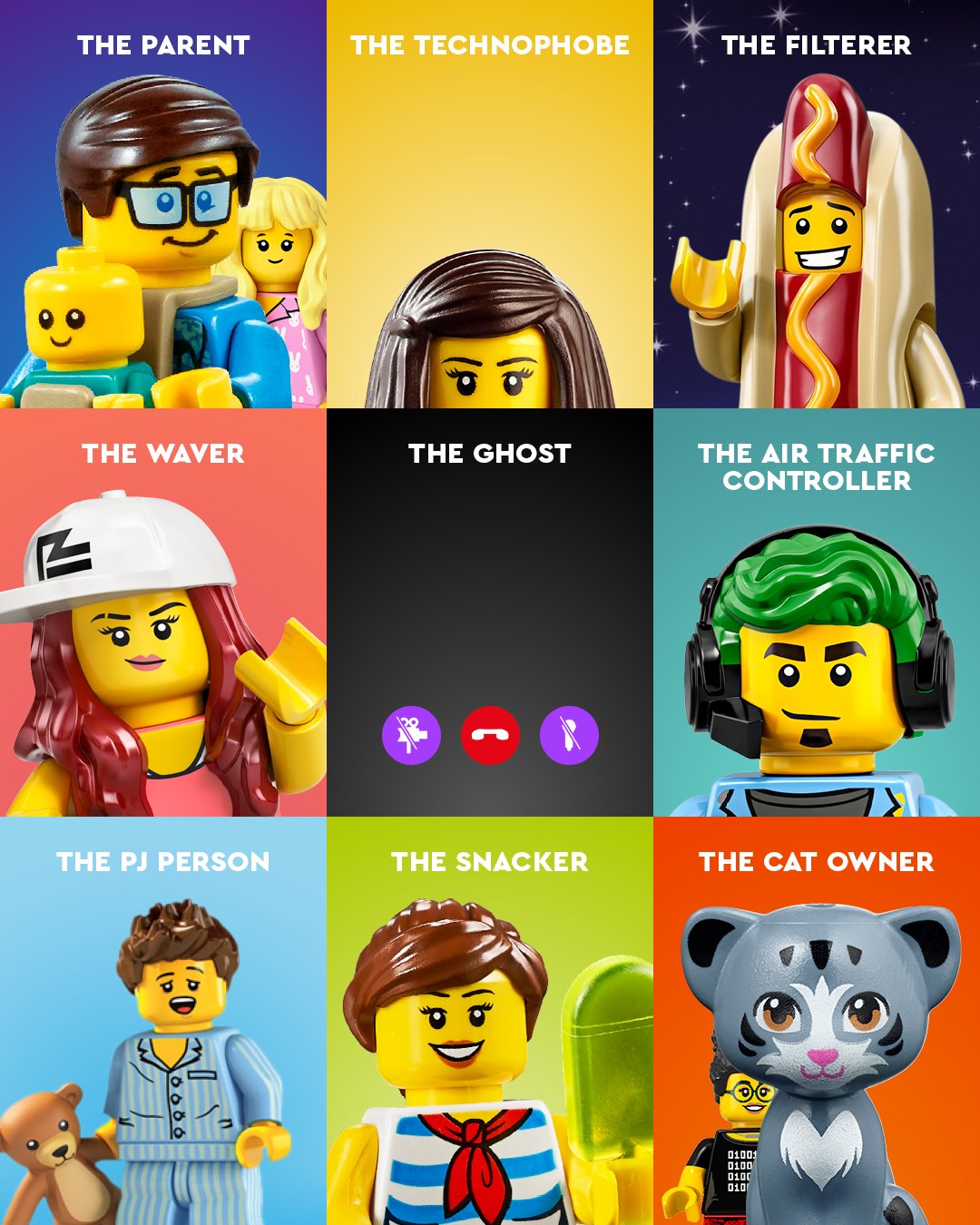
Which Zoom LEGO Figure Are You?
Thanks to Diane Garland for the meme!
For a look at what not to do or how to get invited to less meetings if that is your plan–LOL. Consider watching the following video from Saturday Night Live. 5 minutes 48 seconds. It’s a classic! And I think it is hilarious how Henriette and Nan got out of future Zoom meetings. Smart!
Starting from here, you’ll have most of what you need for your basic Zoom use. Check out our upcoming Chanticleer Writer’s toolbox article on advanced video conferencing techniques for authors and publishers here.